Guide
Concept
You can view and compare the basic concepts in several languages at the same time In our application.
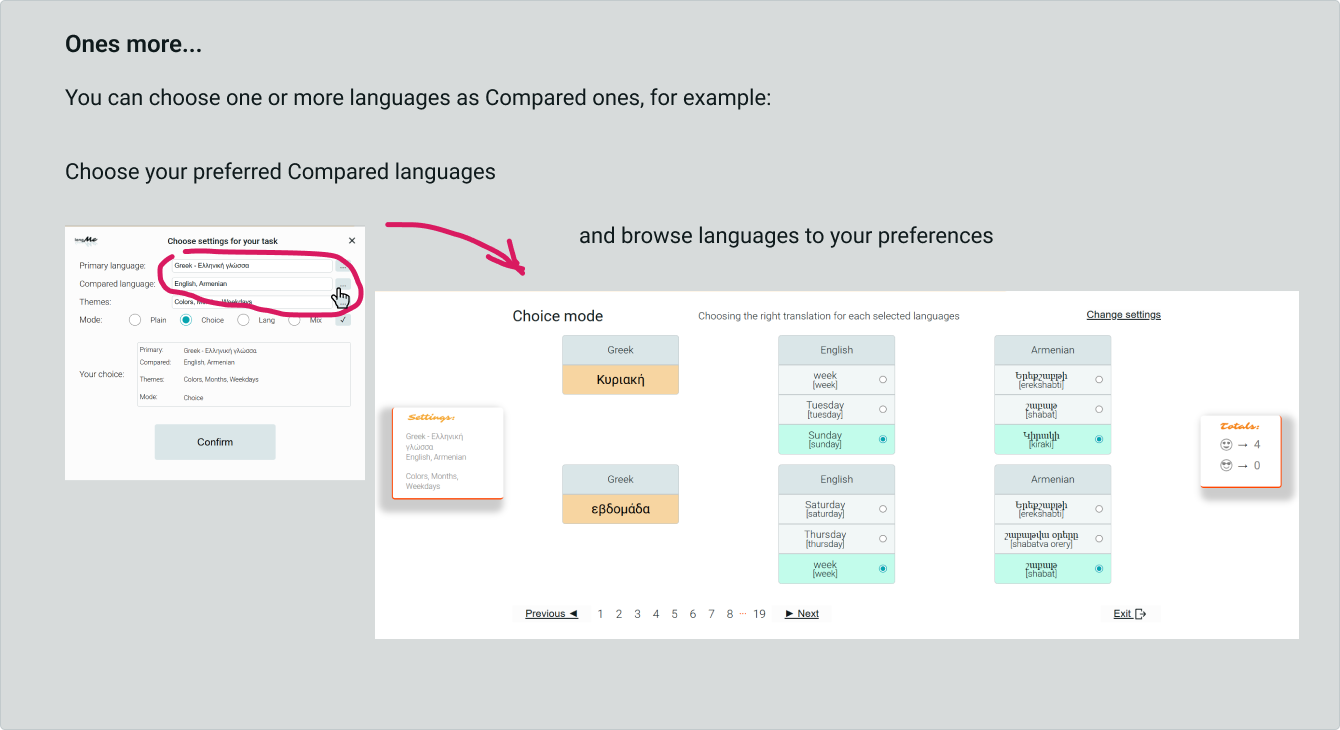
You choose your base language, for example, your native language, and up to five languages to compare basic concepts.
We are giving you some exercises so that these several languages don't get confused when you speak one of them.
Successful and successful scores are calculated for each exercise. 🙂
The history of your exercises is saved so that you can see the progress.
You can also just see what something is called in other languages, it's interesting!
Languages
There are currently six languages available in our app.
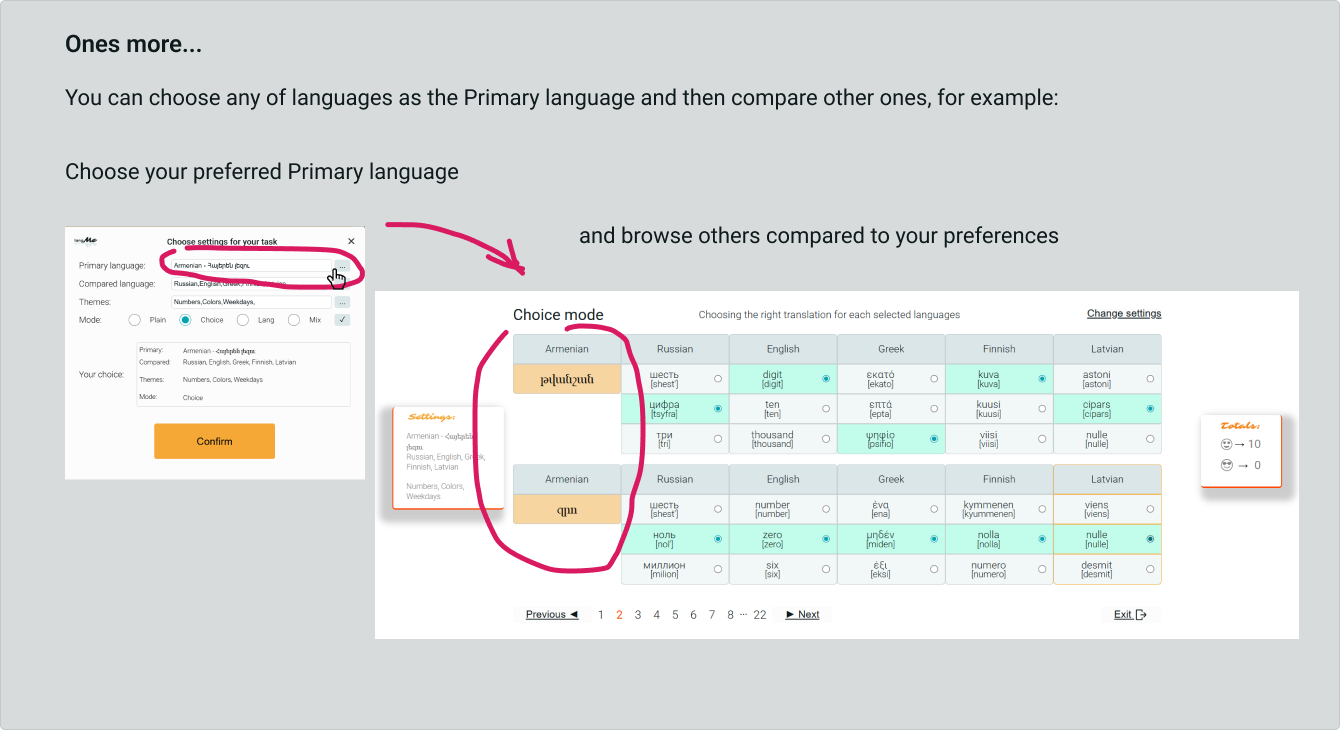
You can choose any of them as the main one and compare other languages with it.
Here are the languages available in the app now:
● Russian
● English
● Armenian
● Greek
● Finnish
● Latvian
We plan to add dictionaries to the application in other languages, including we will take into account your wishes in this.
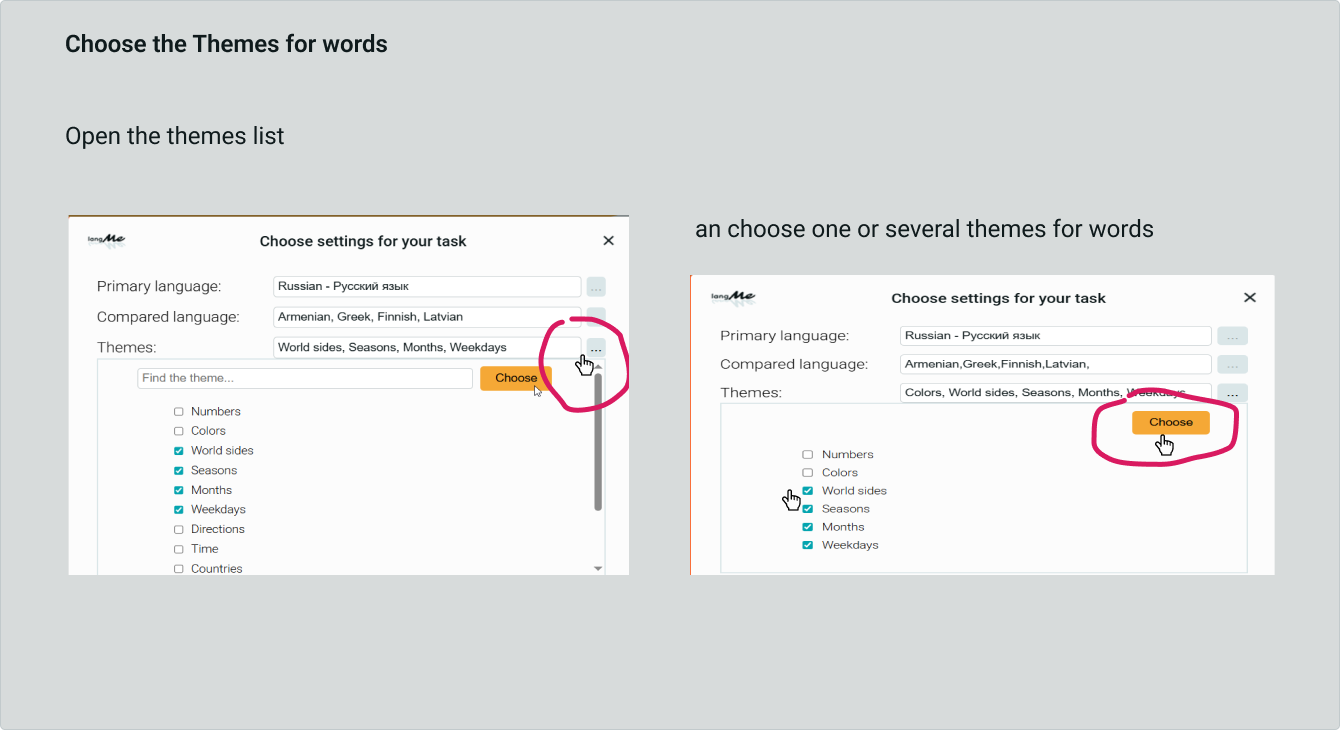
Themes
The dictionaries in our app are grouped by topics.
You choose the topics and the basic concepts will be visible in your task.
These are the topics currently available in our app:
● Communication
● Pronouns
● Numbers
● Colors
● World sides
● Seasons
● Months
● Weekdays
● Sizes
● Directions
● Figures and Forms
● Time
● Countries
● Personal data
● Family
● Nature
● Weather
● Fauna
● Flora
● Body parts
● Nutrition
● Food products
● Drinks
● Vegetables
● Fruits
● City
● Transport
● House
● Furniture
● Crockery
● Clothes
● Professions
● Sciences
● Culture
● Education
● Work
● Medicine
● Traiding
● Sport
● Religion
● Technics
● Tools
● Materials
● Holidays
● Conjunctions
● Prepositions
● Questions
● Verbs
● Adjectives
● Adverbs
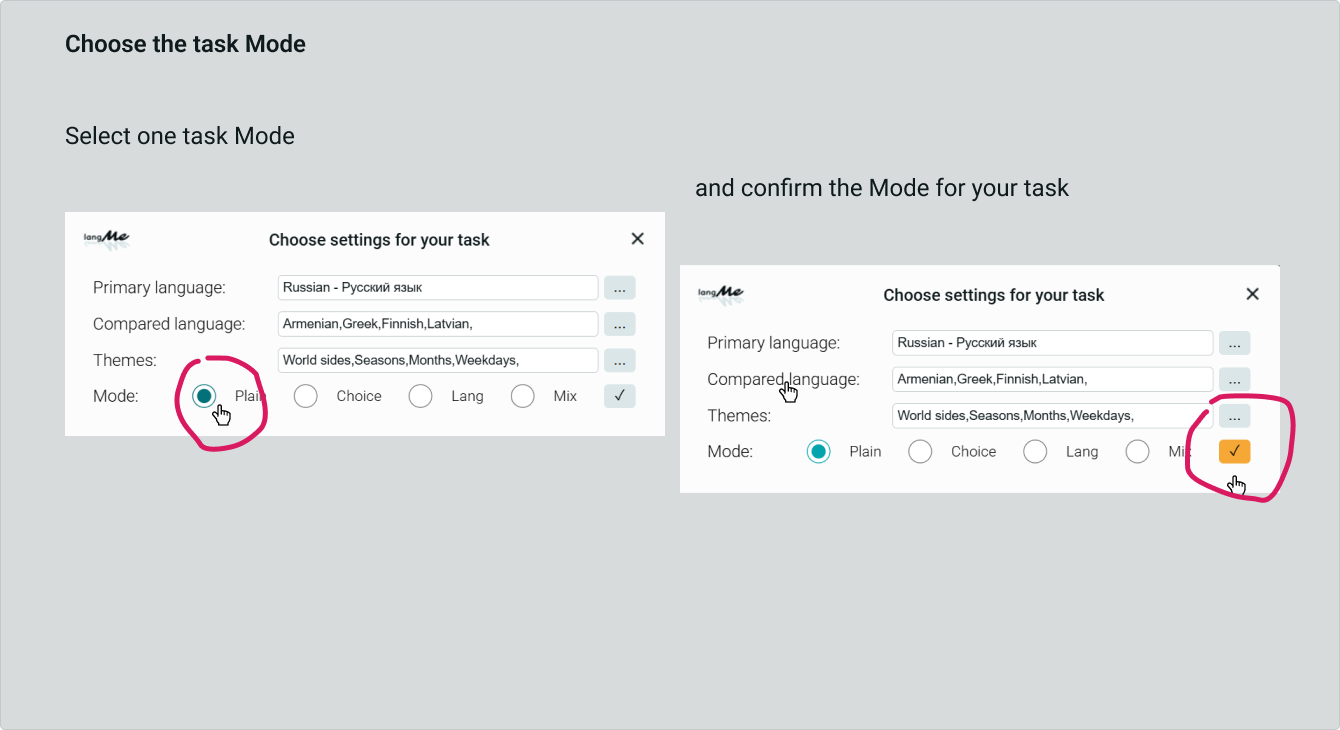
Modes
We offer four operating modes with the selected vocabulary.
These are the operating modes currently available in our application:
● Plain
● Choice
● Lang
● Mix
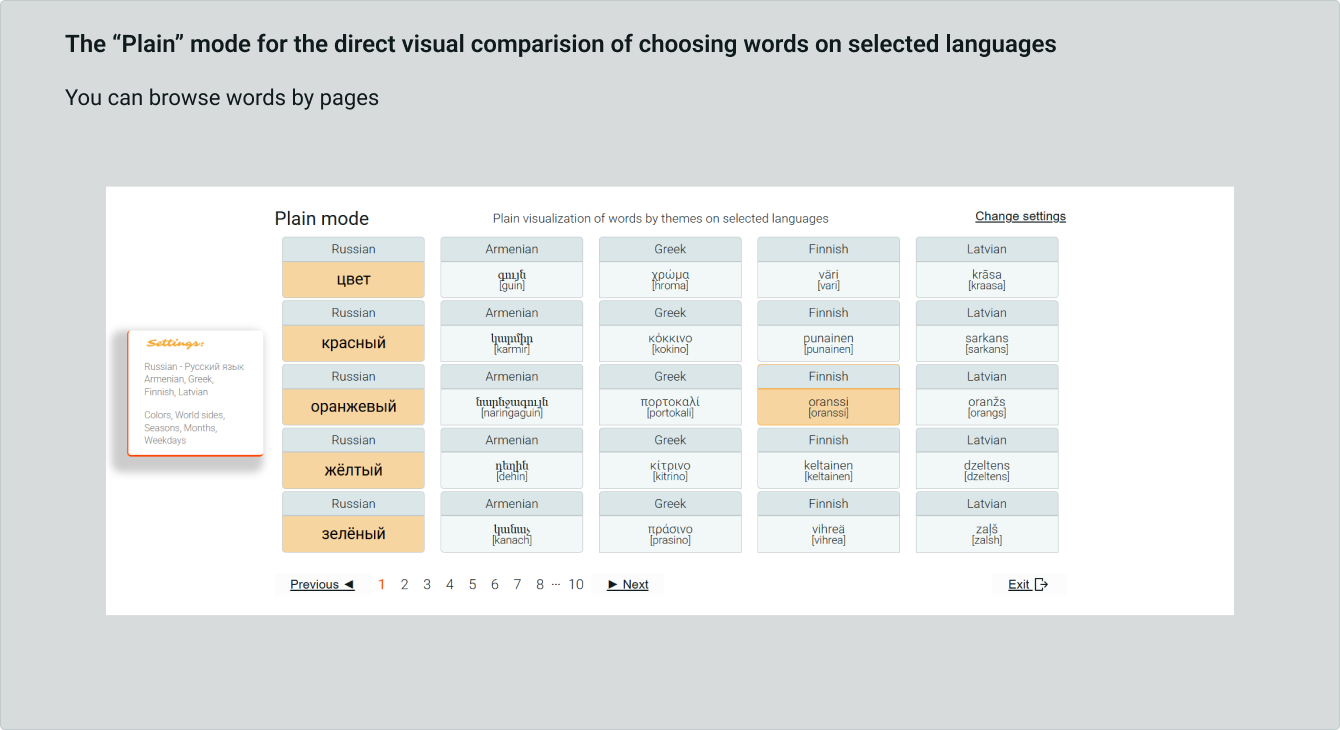
PLAIN mode - is a simple way to view and match words and phrases on selected topics.
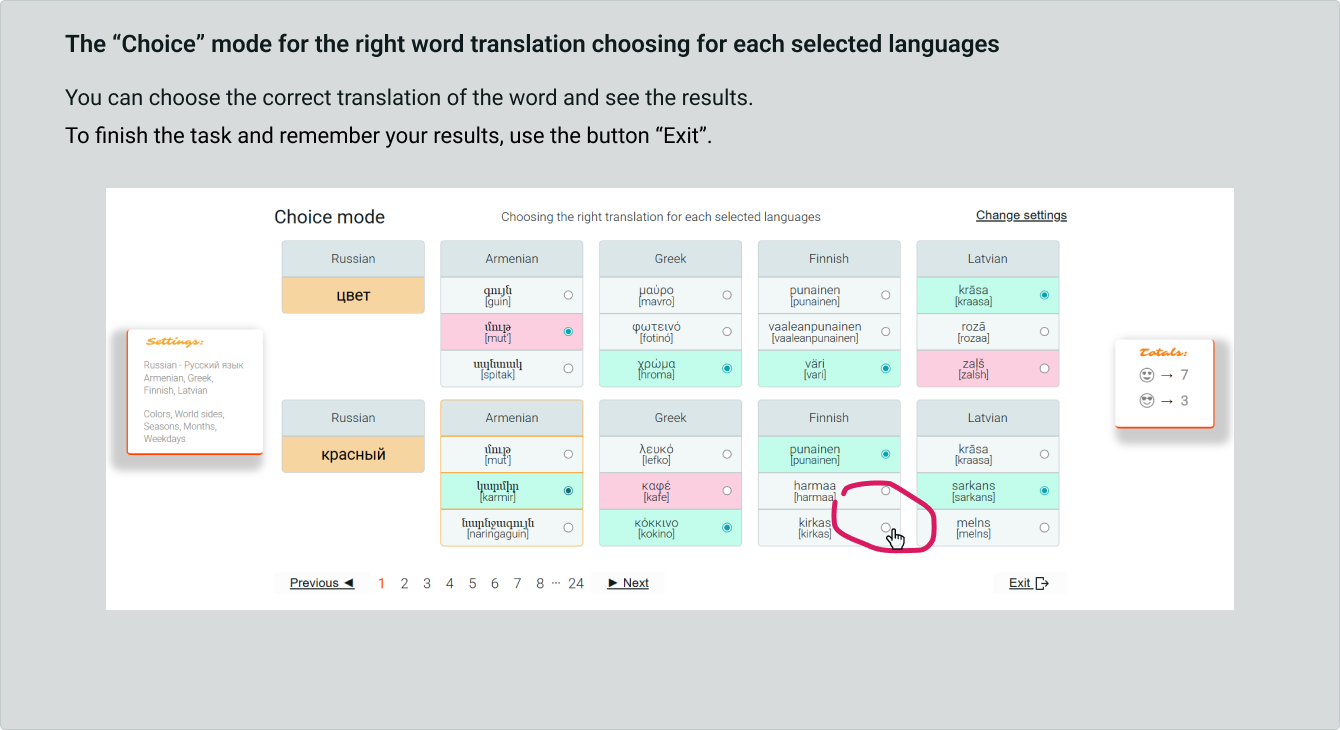
CHOICE mode - here you need to choose the correct translation of a given word in each of the selected languages.
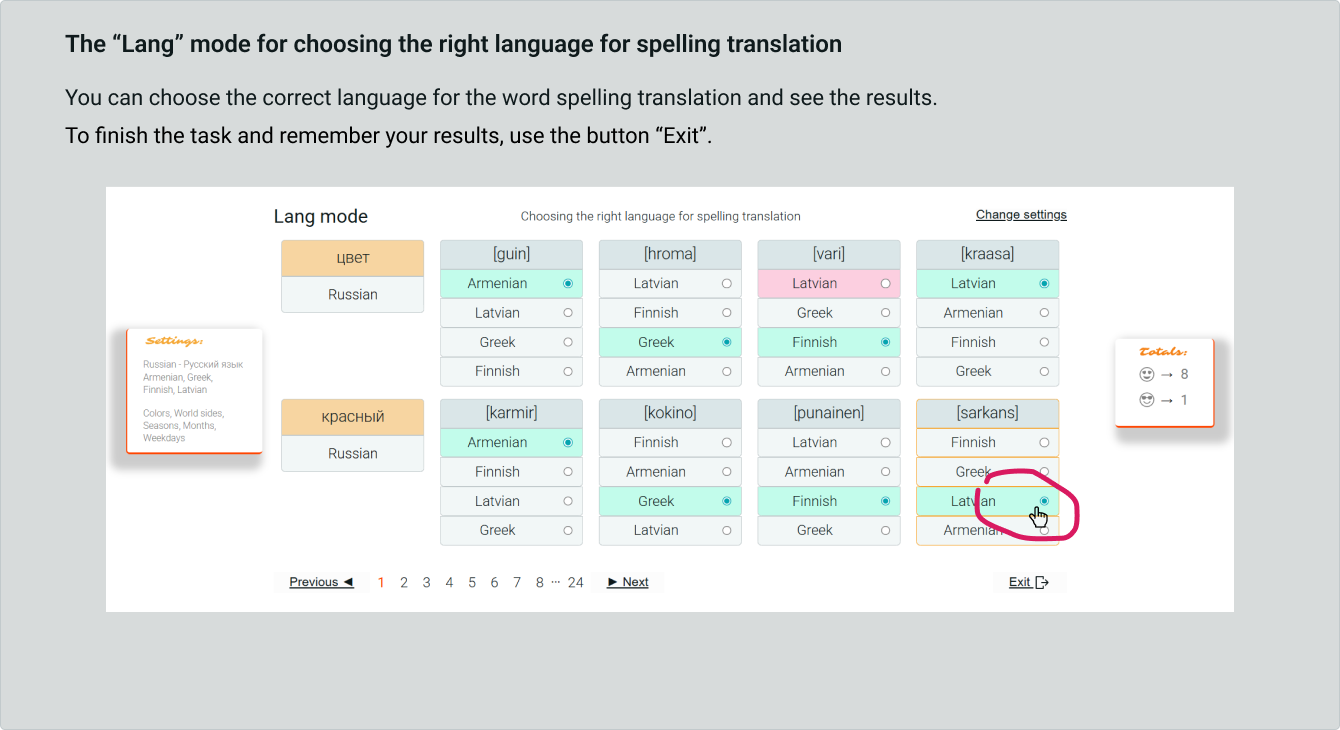
LANG mode - here you need to choose the correct language in which the spelling of the translation of a given word is written.
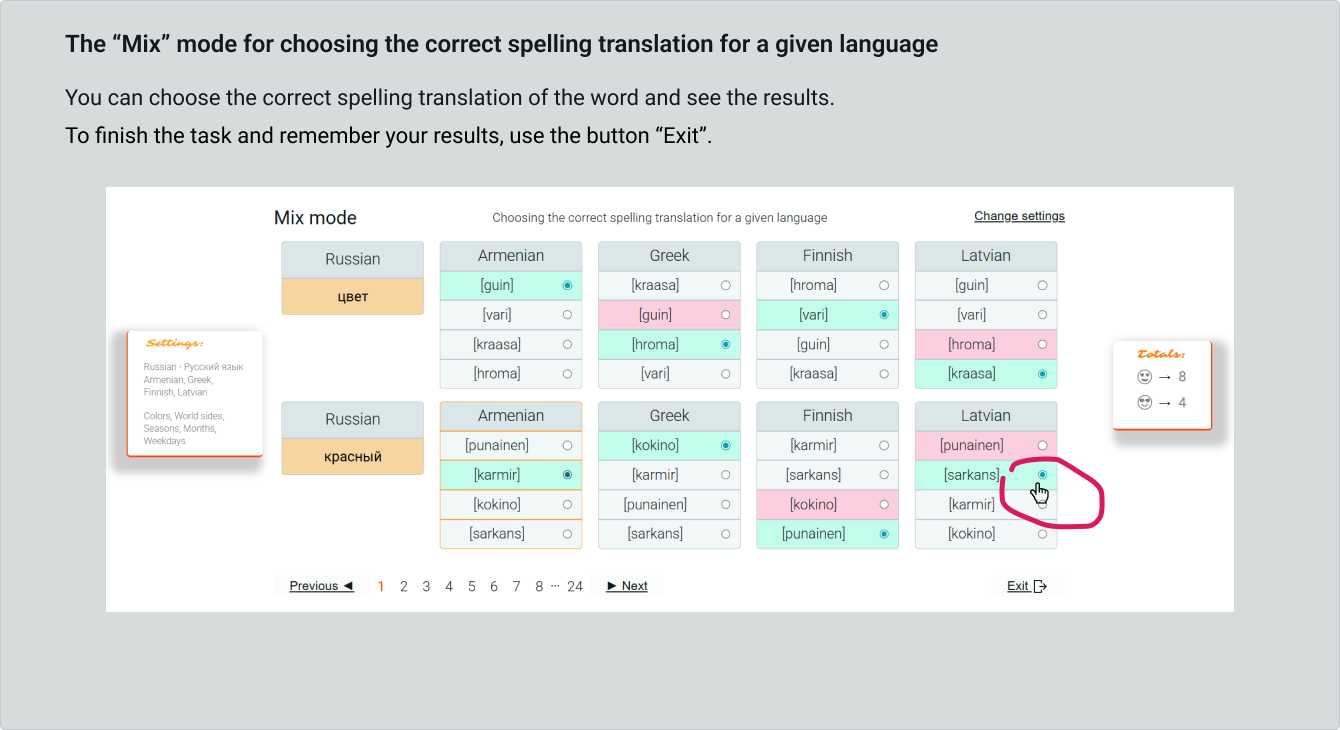
MIX mode - here you need to choose the right spelling for the translation of a word for a given language.
Home page
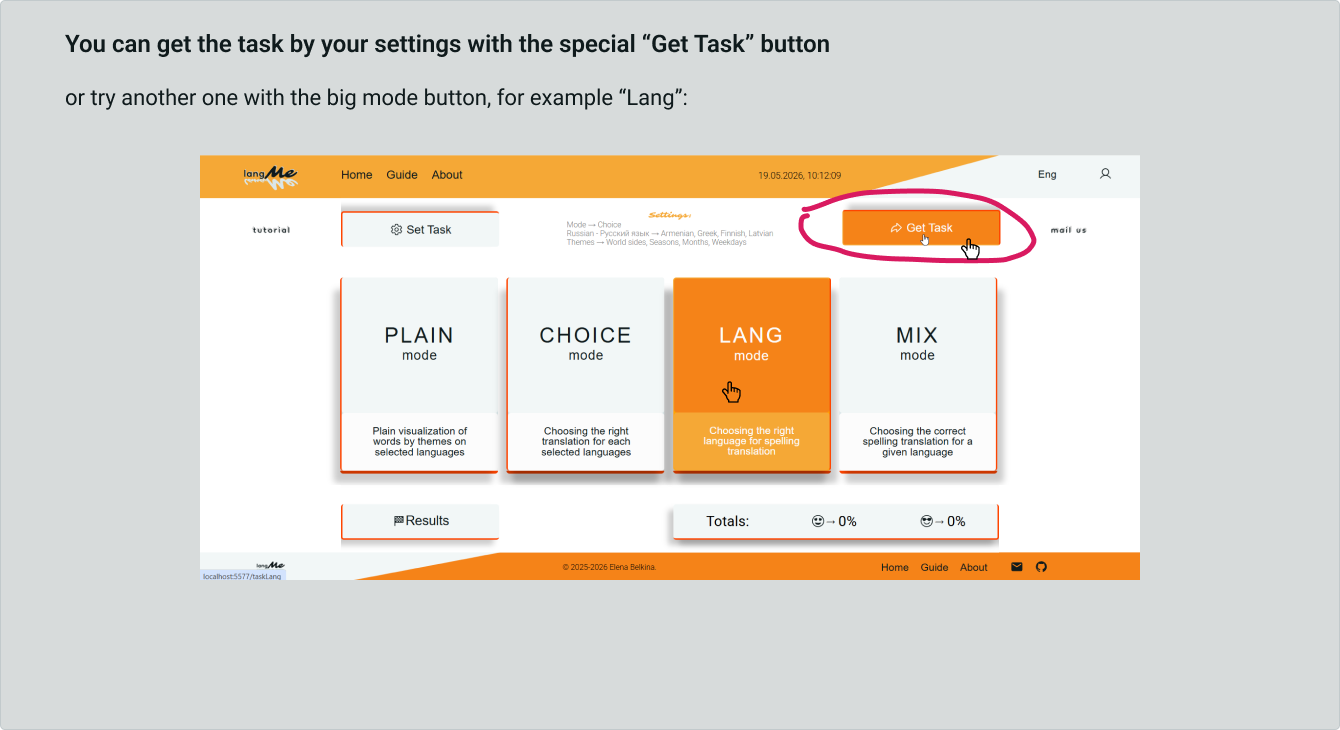
Get to know each other on the Main page of our application.
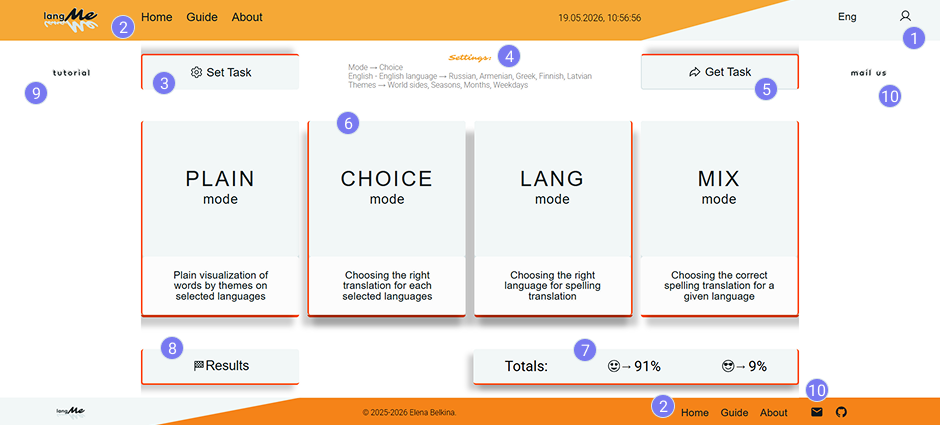
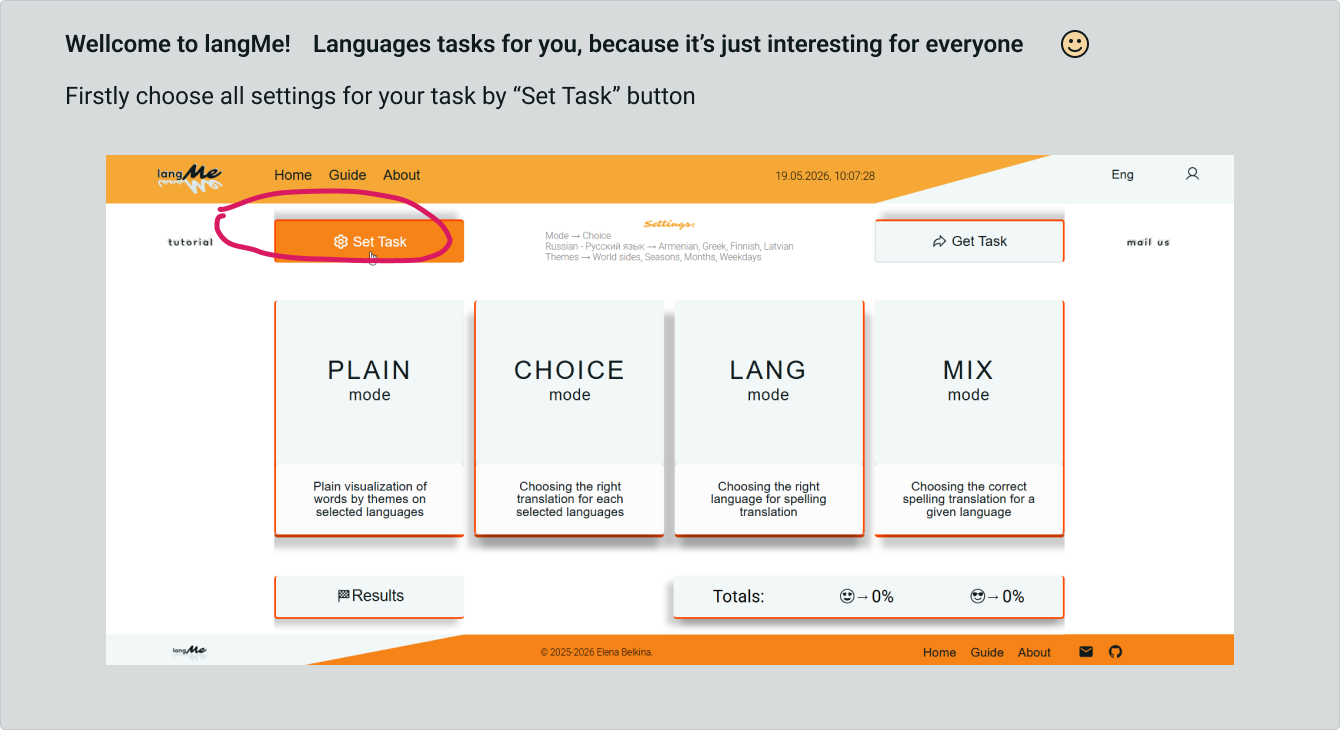
Here you can set up your task and see your overall results, view a short guide and send us a message.
In order to send us messages and view your task history in the future, you need to register in our application.
Here is a list of the main elements of the Main Page with their brief description.:
1 - login and registration button,
2 - the menu for navigating through the application pages,
3 - Task settings button,
4 - here you can see how you set up your task,
5 - the button to go to the configured task page,
6 - buttons to go to the pages of all operating modes, regardless of the mode selected in the settings,
7 - Here you can see the overall results of all your tasks,
8 - the button to view your results for all tasks, you can download the file .PDF,
9 - Here you can see a short guide on our application,
10 - here you can send us a message, for this you need to register (button - 1).
Settings
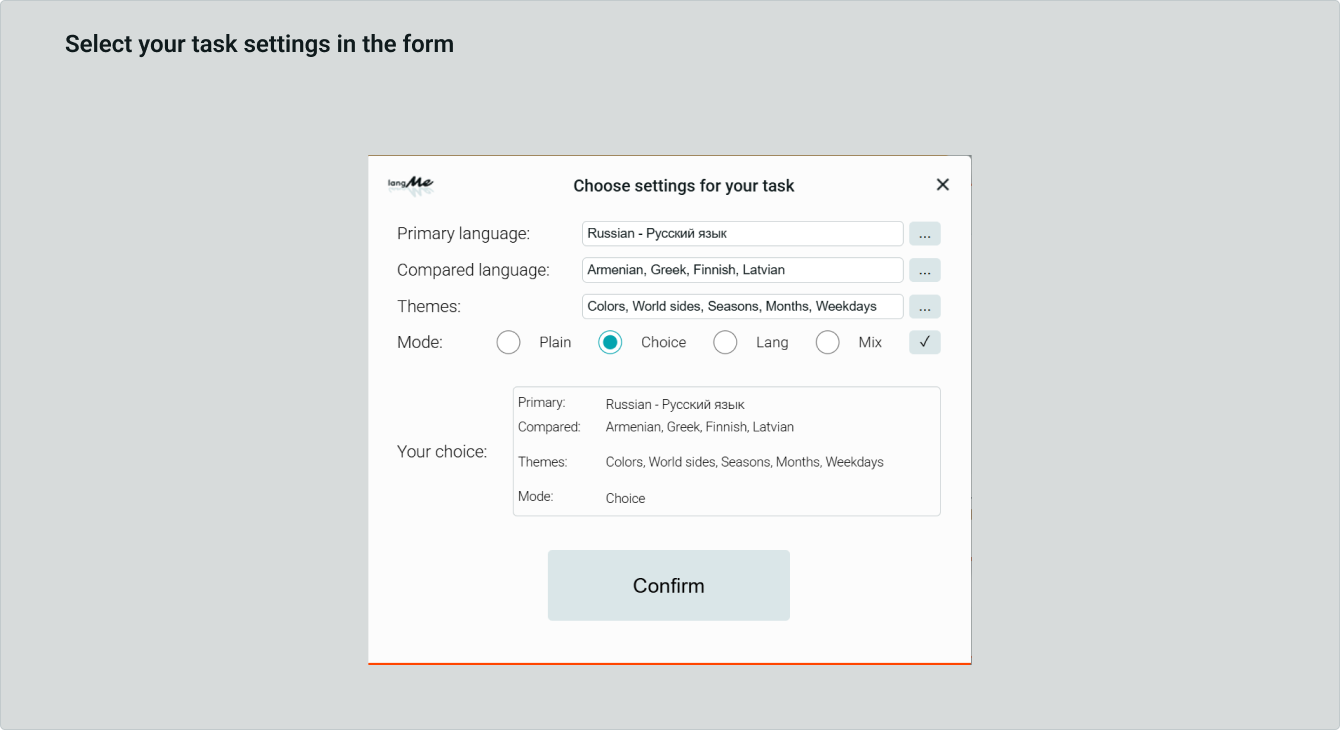
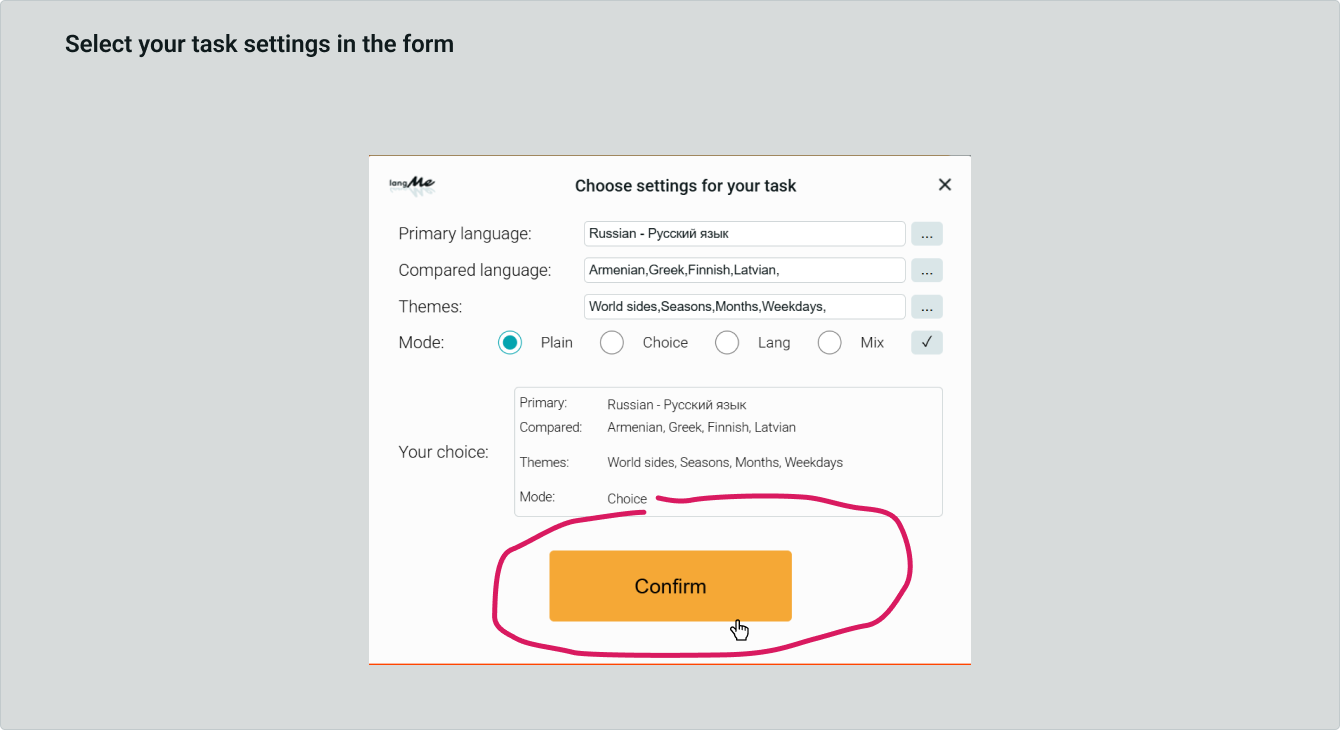
The task setup form is opened by clicking the "Set task" button on the Main application page.
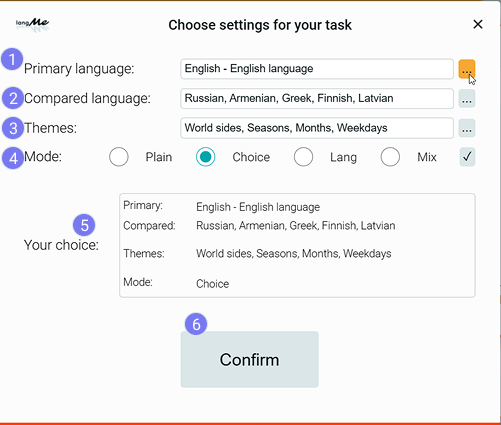
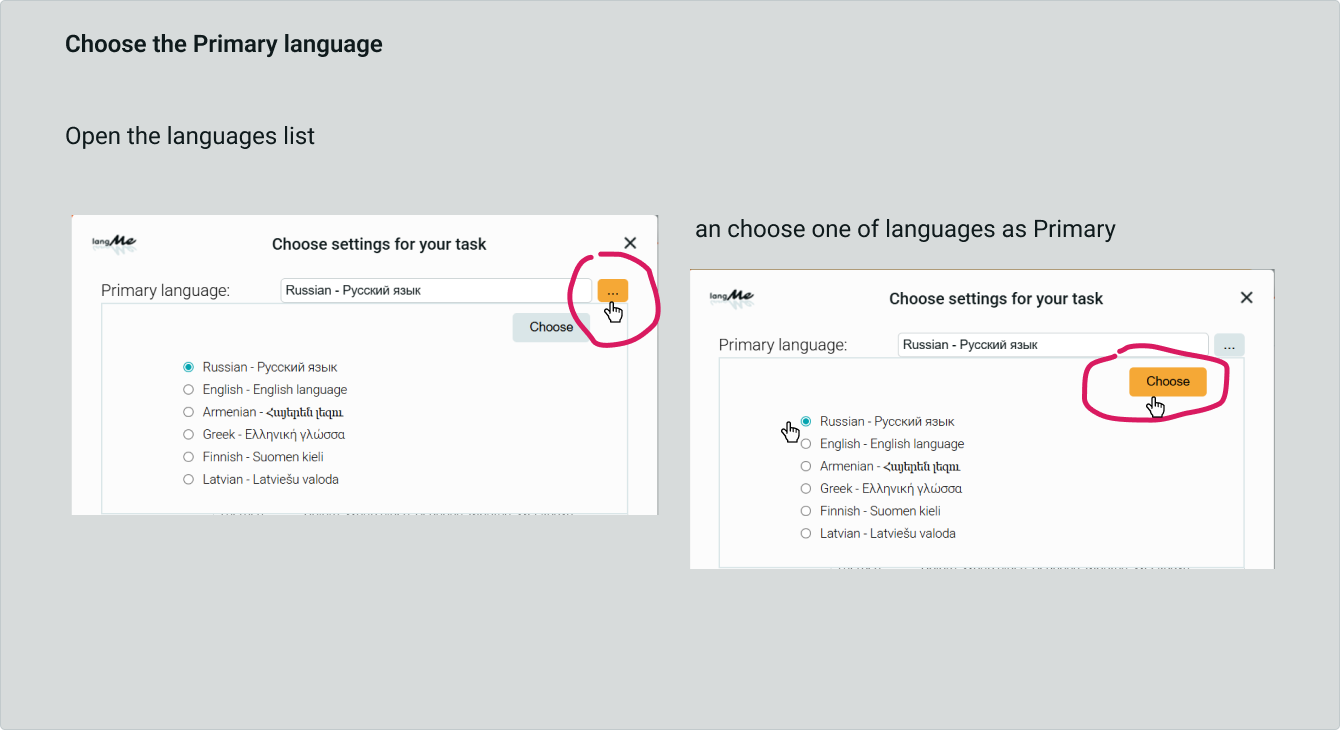
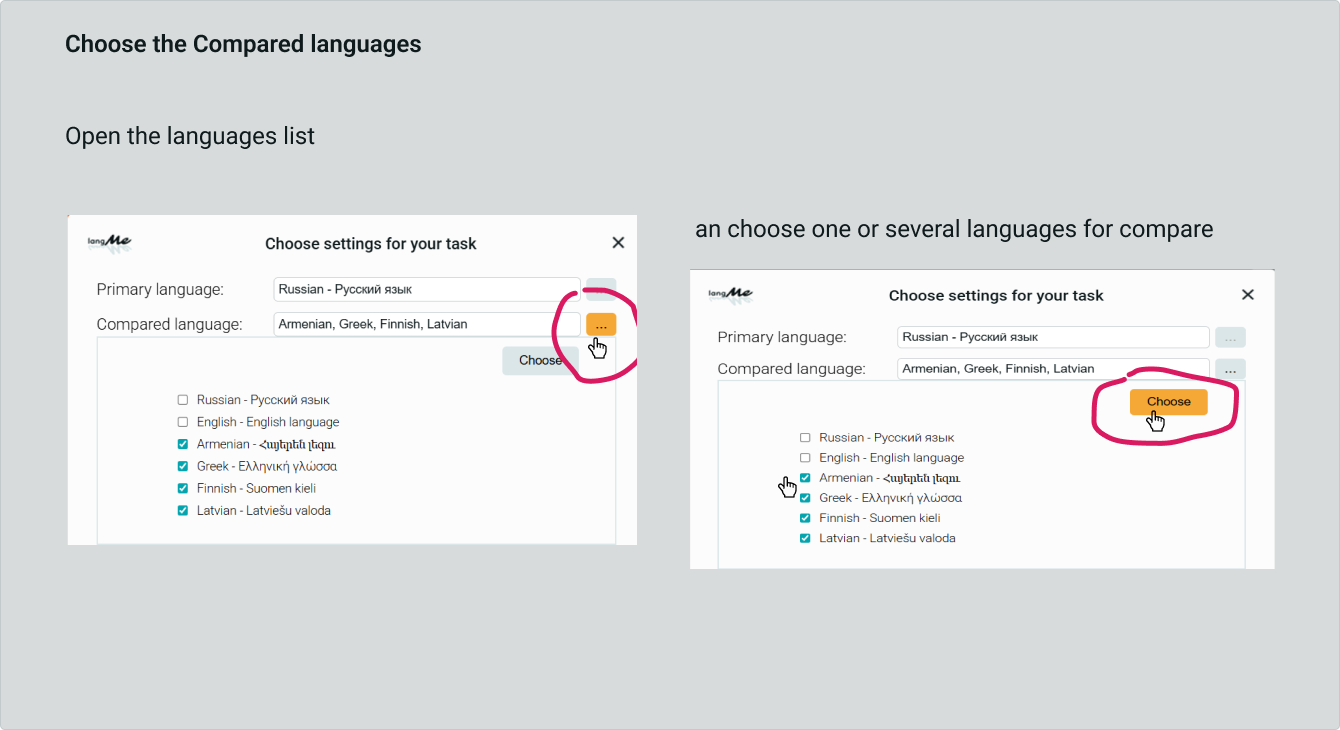
You need to select the following settings:
1 - your base language, with which you will compare words in other languages,
2 - from one to five languages for word comparison,
3 - Dictionary topics,
4 - Task operating mode.
IMPORTANT! - To make a choice, do not forget to click the "Choose" buttons in each of the lists.
5 - Here you can see your choice for the task.
6 - This button must be pressed to confirm your choice.
Task page
The task pages are arranged like this:
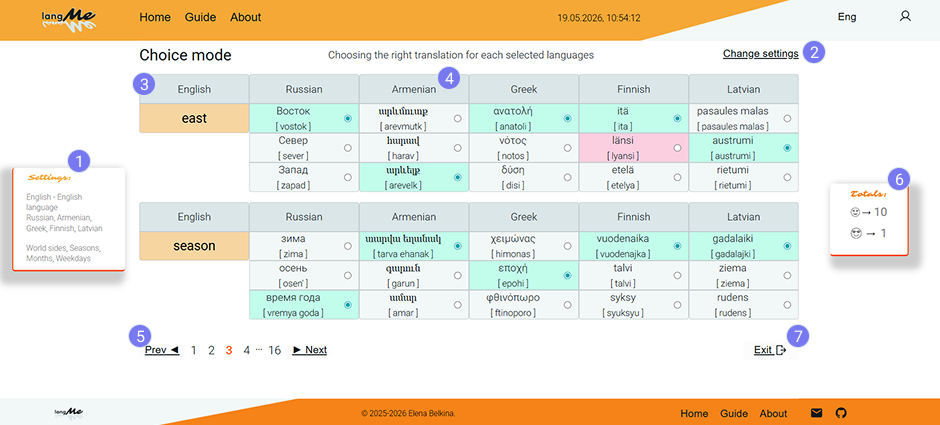
1 - You can view your task settings on the left.
2 - here you can change the task settings.
3 - in the first column, the words on the selected topics in your basic language.
4 - These cards show the words in the languages that you have selected for comparison.
In all task modes, except PLAIN, you need to choose the right option, it will turn green.
5 - there are the buttons for navigating through the task pages.
6 - Your scores for the current task are counted on the right.
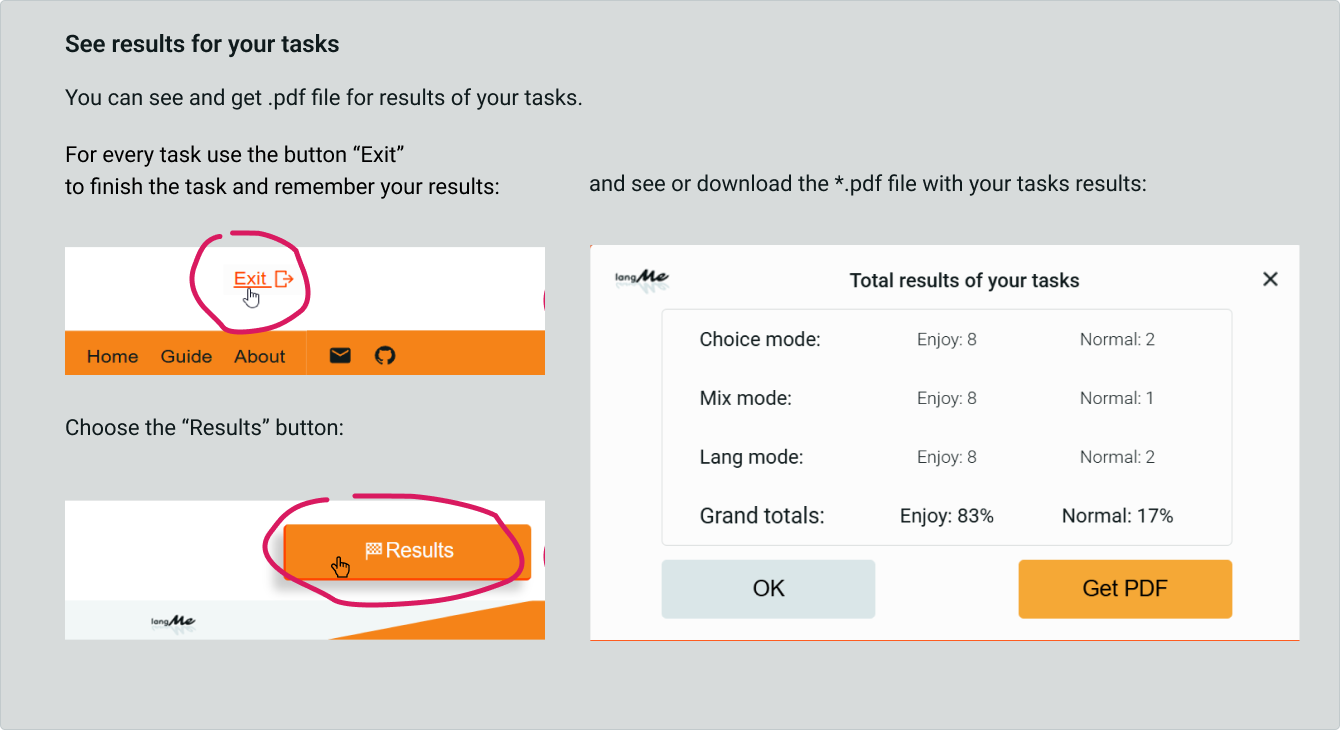
7 - it's the button to save your results and exit the task.
IMPORTANT! - to save your results, be sure to press the 7 - "Exit" button.
If you have registered in the app and logged into the session, you will be able to view your results in the future in the "Results" menu.
If you work with tasks without registration, then you can see your results only in the current session of working with the application.
Results
The form for viewing the results of your tasks is opened by clicking the "Results" button on the Main page of the application.
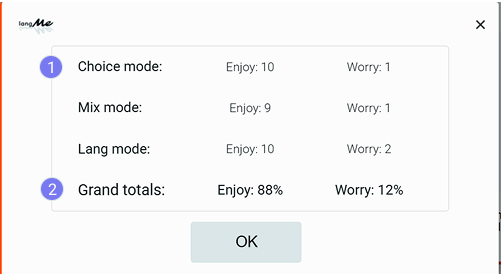
1 - here you can see the results of your tasks for all the modes that you used in the current session of working with the application.
2 - Your actual results are also shown here.
IMPORTANT! - If you have registered and logged into a session, you can view a list of your results for all work sessions. To do this, go to the menu "Results", there will be a list of all your tasks. You can download this list as a file.PDF
About page
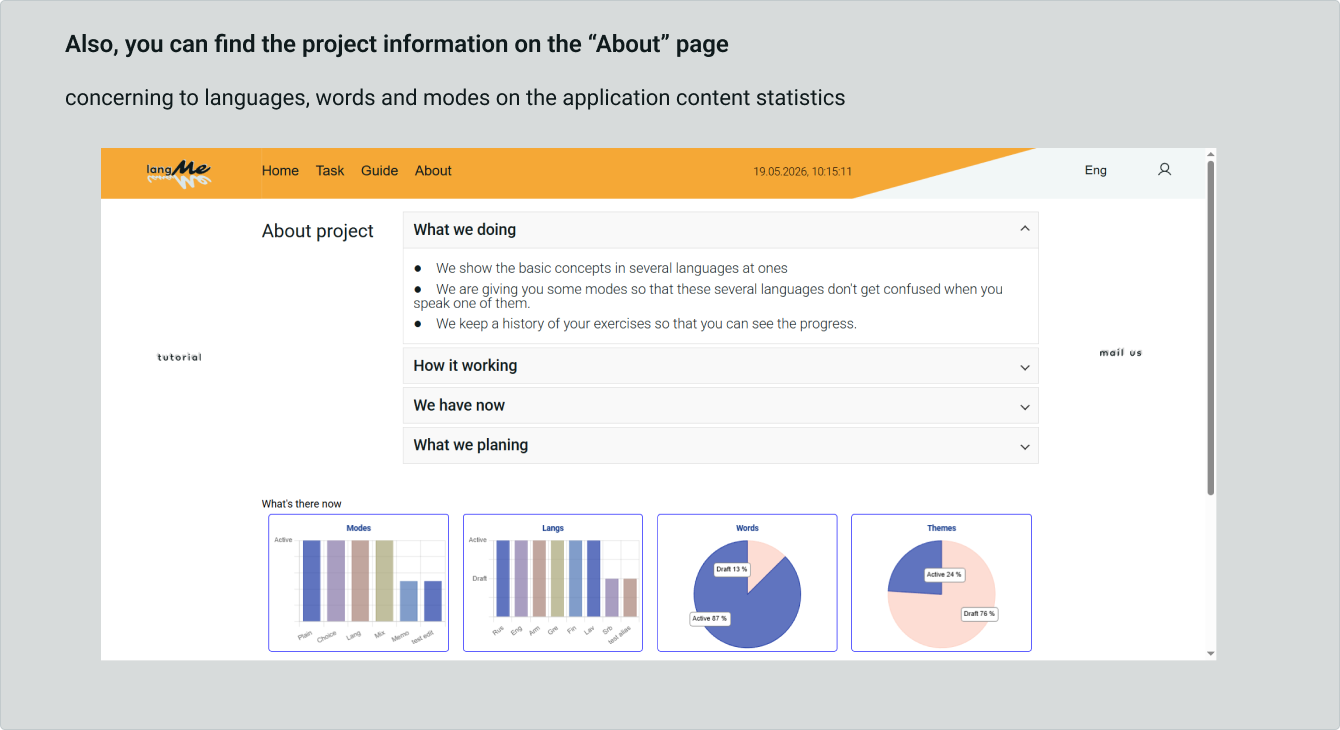
On this page, we briefly talk about our project and show real-time statistics of project resources:
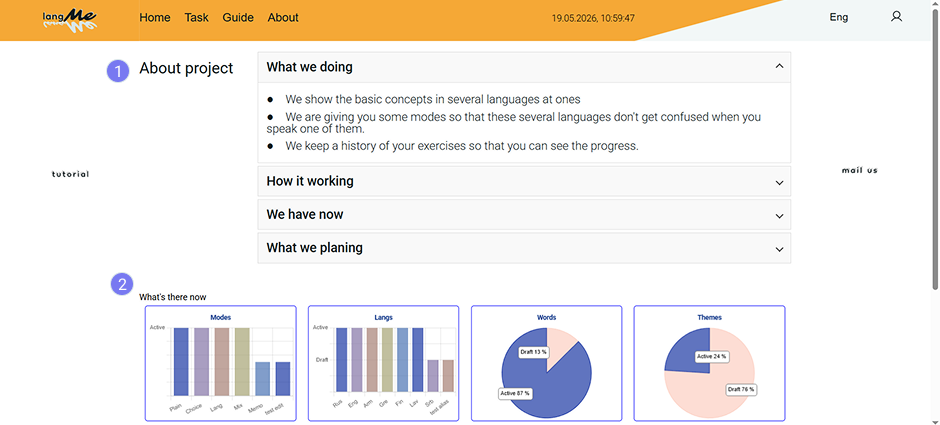
1 - Here you can see a brief information about our project.
2 - Here we show the statistics of our resources in real time.
You can take a look at:
● how many operation task modes are there in the application,
● what languages are available in the application,
● how many topics are there in dictionaries,
● how many words are involved in thematic dictionaries,
● You can track how our dictionaries are being updated.